What breaks
Connect logs warning Event ID 1011 once 70% of the certificate's lifetime has passed, and error Event ID 1012 after it expires. On a warning, check that the scheduler is running. If you manage the certificate yourself, create a new key and certificate and rotate it.
Microsoft Entra Connect Sync uses this certificate when its application identity authenticates to Microsoft Entra ID. If the active certificate expires without a usable replacement, the connector cannot use that application identity for synchronization. Microsoft documents the application-identity authentication model.
Don't find out from a stopped sync
AppAlert emails your admins before the Connect Sync certificate expires. Read-only, free during Early Access. Connect read-only
- Read-only permissions
- Microsoft Graph application permissions
Application.Read.All,Directory.Read.All,AgentIdentity.Read.All,AgentIdentityBlueprint.Read.All,AgentIdentityBlueprintPrincipal.Read.All, plusUser.Readfor sign-in. No write permissions: AppAlert cannot create, rotate, or delete credentials. - Never received
- Secret values, certificate private keys, Microsoft account passwords, and mailbox contents. AppAlert stores credential metadata such as type, expiry date, and owner email addresses.
- Where data lives
- App functions and database in Frankfurt, Germany (Vercel fra1, Neon on AWS eu-central-1). Alert emails are sent through Resend, which stores them in the United States. Data location
- Revoke any time
- A Microsoft Entra administrator can revoke AppAlert's enterprise application consent. That stops future directory reads; deleting stored data is a separate request. Retention and revocation
How you notice
Check the Windows Application event log on the Connect server. Event ID 1011 warns when at least 70% of the certificate lifetime has elapsed. Event ID 1012 reports that the certificate has expired. Connect emits these messages at the scheduler frequency, only while the scheduler is not suspended. Run Get-ADSyncScheduler to check whether it is suspended.
The Connect wizard's View or export current configuration task shows who manages the certificate, whether automatic rotation is enabled, and its validity dates. Get-ADSyncEntraConnectorCredential reports the connector identity and application ID. See Microsoft's certificate rotation and configuration checks.
Why it happens
For the default managed configuration, current Connect versions create a 90-day certificate and check rotation from the synchronization scheduler. A suspended scheduler cannot run the automatic rotation check. Bring Your Own Certificate and Bring Your Own Application configurations remain administrator-managed. Microsoft explains the three certificate-management modes.
Version also matters. Connect 2.6.1.0 changed the trigger to 70% of certificate lifetime and fixed a renewal failure caused by edits in Synchronization Service Manager on some earlier 2.5 releases. Connect 2.6.91.0 fixed another rotation defect involving directory-replica delay. Review the Connect release history and update to a supported release before troubleshooting an old build.
Renewal path
First, open the Connect wizard and use View or export current configuration. Confirm that the connector uses an application identity, then record Certificate managed by, Automatic rotation enabled, the thumbprint, and the validity dates. Run Get-ADSyncScheduler and resolve an unexpected suspended state before relying on automatic rotation.
For a current, Microsoft Entra Connect-managed 90-day certificate with automatic rotation enabled, Connect normally attempts rotation after 70% of its lifetime has elapsed. That is around day 63, or roughly 27 days before expiry. This timing applies to managed certificates, not Bring Your Own Certificate or Bring Your Own Application configurations. Microsoft documents the managed rotation behavior.
Managed rotation needs no action unless the scheduler is suspended. Connect adds the new certificate credential and tries to remove the old one. If removal fails, an error appears in the Application event log. Remove the old credential with Remove-EntraApplicationKey -CertificateId <certificateId>.
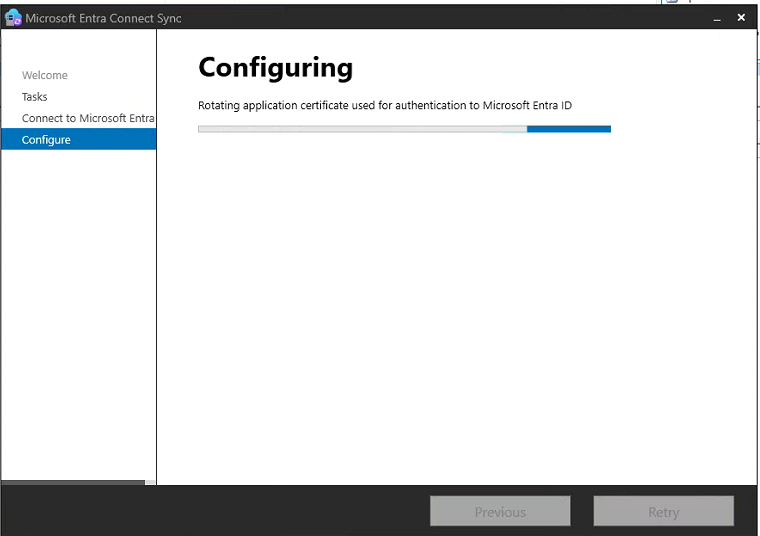
If the managed certificate has not rotated, use Microsoft's manual wizard path. Microsoft states that this path works both before the certificate is due and after it has expired.
-
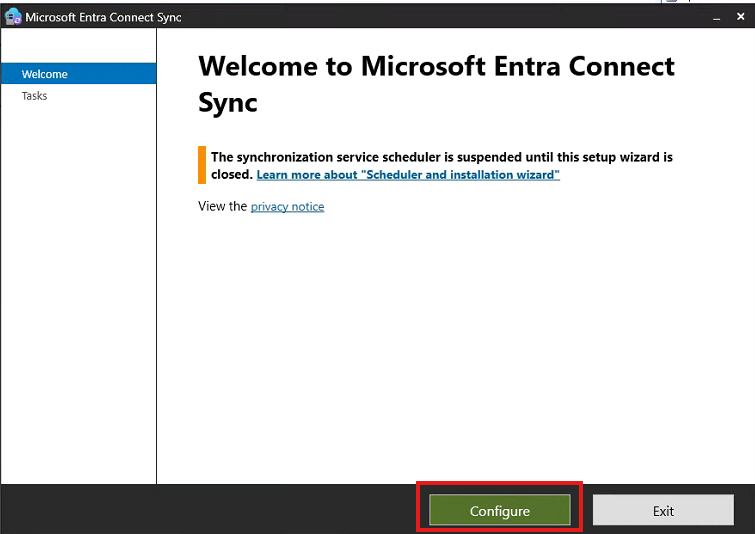
Start the Microsoft Entra Connect Sync wizard and select Configure.
-
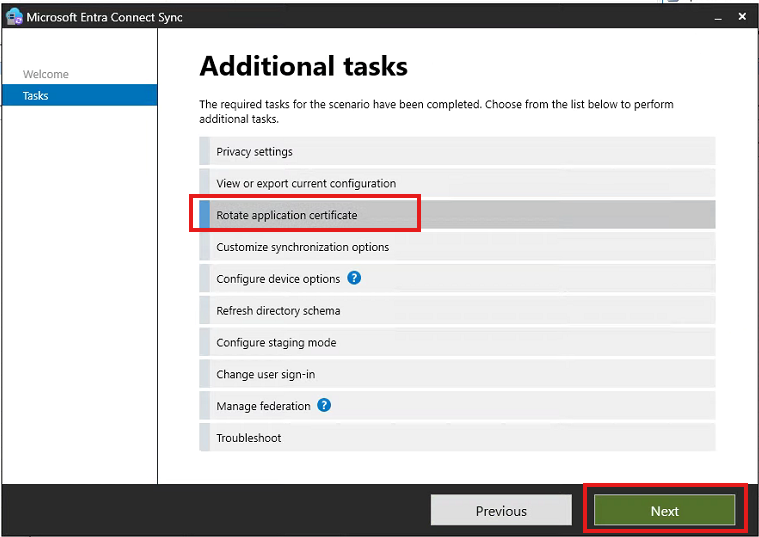
Under Additional tasks, select Rotate application certificate, then select Next.
-
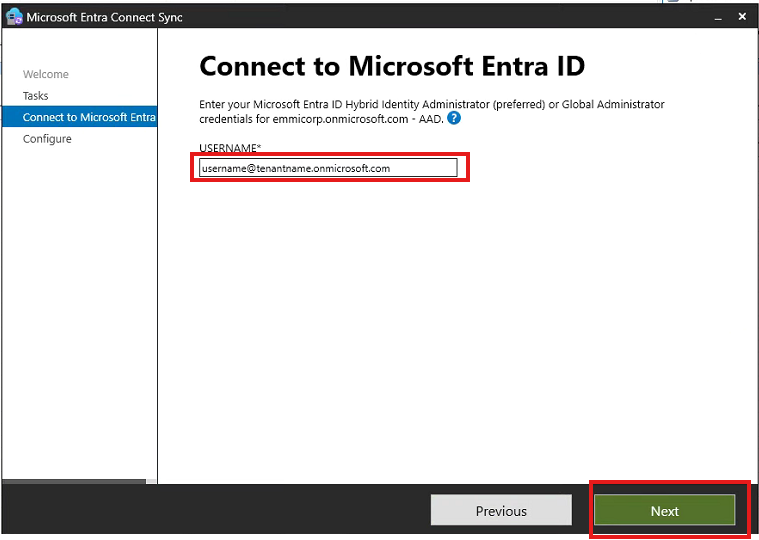
Enter the requested Hybrid Identity Administrator or Global Administrator account, then select Next.
-
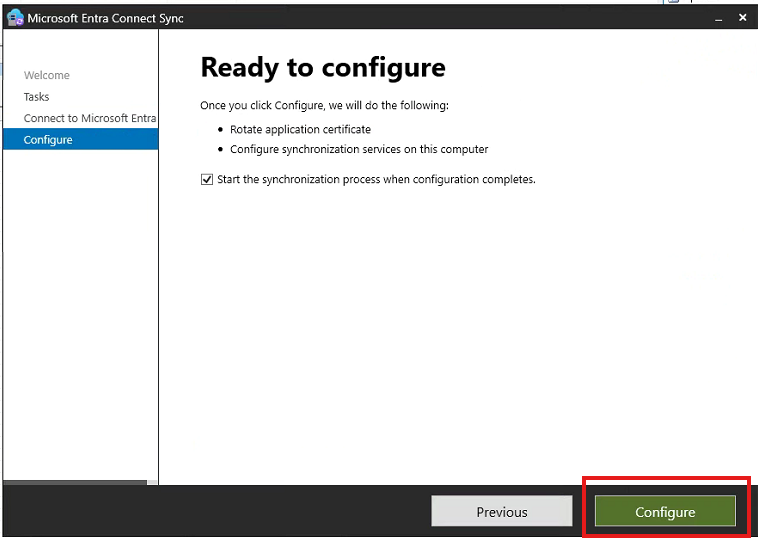
Review the actions on Ready to configure, keep synchronization enabled when appropriate for your change procedure, and select Configure.
-
Wait for the wizard to finish, then verify the new certificate details and a successful synchronization cycle.
For Bring Your Own Certificate or Bring Your Own Application, generate a new key and certificate when Connect warns, then follow Microsoft's manual certificate rotation procedure. It includes uploading the replacement certificate, granting the synchronization service access to its private key, changing the connector credential, verifying the configuration, and removing the old certificate only after the replacement works.
Who should own it
The identity team that operates the Connect server should own the renewal. The same team needs access to the server, the Connect configuration, the application registration, and the certificate's private key when the organization manages the certificate.
Lead time and business-day math
Use a 30-calendar-day planning buffer. The current managed schedule normally attempts rotation with about 27 days left, so an alert near that point should trigger a verification check. Do not wait for the expiry week. Leave working days for server access, change approval, rotation, and a verified synchronization cycle.
Related failure modes
For other application certificates, use the client authentication certificate guide. SAML signing certificates and Application Proxy SSL certificates use different renewal paths.
Monitored by AppAlert
Monitored
AppAlert monitors the registered certificate's expiry. It cannot confirm that the Connect scheduler is running, that automatic rotation is enabled, or that Connect has started using the replacement certificate.
Use the Operations queue to review the expiry and application context. Configure who receives alerts in Alert settings and recipients; for a missing alert, follow Missing notifications.